
Understanding Diagnostic Tools
In today’s technology-driven world, the efficiency of your devices significantly impacts productivity. Identifying performance issues can be a game-changer in resolving sluggishness, crashes, or connectivity problems. With technology becoming more integrated into our daily lives—from remote work to online education and digital entertainment—understanding diagnostic tools is crucial for maintaining optimal performance.
What Are Diagnostic Tools?
Diagnostic tools serve as your first line of defense in troubleshooting device performance. These tools help uncover hidden issues and provide valuable insights, functioning like a health check-up for your technology. They can reveal whether your computer, smartphone, or network is working as efficiently as possible. Common features include:
- Real-time monitoring of system performance, which allows you to track metrics such as CPU usage, memory consumption, and disk operations as they happen.
- Error reporting to catch problems early, enabling advanced notifications and updates that inform users of any system malfunctions before they escalate.
- Resource usage tracking to optimize performance, illustrating which applications consume the most resources and could potentially be slowing your device down.
Why They Matter
Utilizing diagnostic tools can save time and money by addressing problems proactively. For example, a small business owner using these tools might identify a network bottleneck that could slow down online transactions during peak hours. Discovering performance bottlenecks not only enhances device longevity but also improves user experience, ensuring that both employees and customers enjoy smooth operations. With the right approach, you can:
- Identify CPU and memory performance issues such as overloaded processors or insufficient memory allocation that can lead to slowdowns.
- Analyze network connectivity and speed, helping you pinpoint whether issues lie with your internet service provider or local network configuration.
- Troubleshoot software conflicts effectively, allowing you to recognize if two applications are competing for resources or if updates have caused incompatibilities.
As you delve into the intricacies of device management, understanding how to leverage these diagnostic tools will empower you to enhance functionality and streamline operations. With an array of options available—including built-in system diagnostics, third-party software, and hardware monitoring tools—navigating this landscape can feel overwhelming. However, by familiarizing yourself with these tools, you can unlock the full potential of your technology solutions.
DIVE DEEPER: Click here to discover more
Practical Applications of Diagnostic Tools
The journey into troubleshooting performance issues begins with understanding how to effectively utilize diagnostic tools available at your disposal. Whether you are an IT professional, a small business owner, or an everyday consumer, these tools are designed to provide you with the insights necessary to keep your devices running smoothly. By applying these tools correctly, you can identify underlying issues and enhance your device’s performance significantly.
Types of Diagnostic Tools
There are various types of diagnostic tools you can use, each serving specific functions. Categorizing these tools can help you select the appropriate software or hardware based on the performance issue you are facing:
- Built-in Diagnostic Tools: Most operating systems, whether Windows, macOS, or Linux, come with their own set of diagnostic utilities. For instance, Windows includes the Task Manager and Resource Monitor, which enable users to observe resource allocation and identify bottlenecks in real-time.
- Network Analyzers: These tools, such as Wireshark or NetSpot, allow users to investigate network-related issues, enabling the monitoring of traffic and the detection of slowdowns due to poor connectivity or interference.
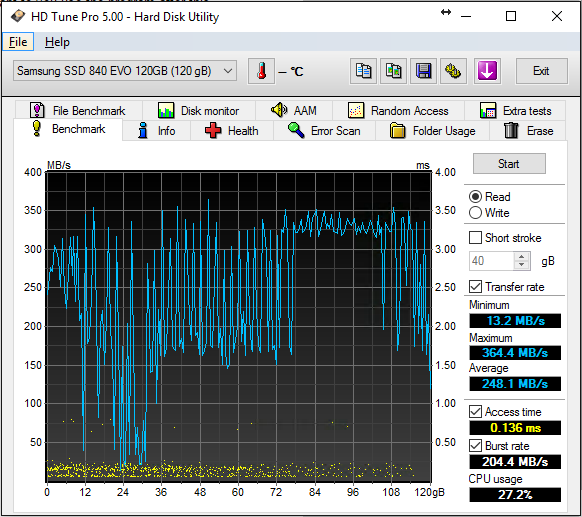
- Performance Benchmarking Software: Tools like Geekbench or 3DMark test hardware performance under various loads and provide a performance score for comparison against similar devices.
- Third-Party Diagnostic Software: Numerous advanced options exist, including CCleaner for system cleanup and optimization or Sysinternals Suite for in-depth analysis of Windows processes and drivers.
Steps to Identify Performance Issues
Once you have identified the right diagnostic tools for your needs, the next step involves methodical execution. Here’s a simple guide to help you through the process:
- Start with Real-Time Monitoring: Utilize built-in tools like the Task Manager to keep an eye on CPU and memory usage. Look for any unusual spikes that may indicate a malfunctioning application.
- Run Network Diagnostics: If connectivity issues persist, employ a network analyzer to check for latency and packet loss. This will help you determine if the problem lies with your internet service or is a local configuration issue.
- Conduct Software Audits: Review installed applications using a tool like CCleaner. Uninstall any unnecessary programs and disable startup items that may be hogging resources.
- Benchmark Your Hardware: Use benchmarking tools to assess if your hardware is performing up to par. Comparing the scores to industry standards can indicate if an upgrade is necessary.
By following these steps in conjunction with the appropriate diagnostic tools, you can effectively pinpoint the root cause of performance issues in your devices. As a result, you will be equipped to make informed decisions whether to troubleshoot, upgrade, or seek professional assistance. With the right approach and knowledge, mastering device diagnostics can transform the way you interact with technology, ensuring that any performance issue is swiftly addressed before it escalates into a more significant problem.
Understanding Diagnostic Tools for Performance Issues
When it comes to identifying performance issues in devices, diagnostic tools serve as essential instruments. These tools can greatly enhance your ability to pinpoint specific problems that may be hindering device efficiency. From basic functionalities to complex systems, diagnostic tools provide a comprehensive look into a device’s operation.
Types of Diagnostic Tools
Several types of diagnostic tools are available, each catering to different aspects of device performance:
| Category | Key Features |
|---|---|
| Monitoring Tools | Track real-time performance metrics. |
| Stress Testing Tools | Evaluate how devices perform under heavy load. |
| Network Analyzers | Identify connectivity and communication issues. |
| Error Log Checkers | Review past errors for actionable insights. |
Utilizing these tools allows users to gain valuable insights into performance bottlenecks and operational anomalies.
Practical Application of Diagnostic Tools
To effectively use diagnostic tools, ensure you regularly run performance assessments on your devices. Start with a baseline measurement when the device is operating normally. By doing this, any future analyzes can be compared against this standard.Be proactive in addressing issues found by these diagnostic tools. Hardware malfunctions or software bugs can often be resolved promptly if detected early, minimizing long-term effects on productivity. Adopting a systematic approach when handling diagnostic tools not only optimizes device performance but also enhances overall user experience.In this pursuit of efficiency, remember that knowledge gained through these tools extends beyond immediate issues; it fosters a deeper understanding of how devices operate, ultimately leading to a more insightful approach to technology management. Always keep in mind that the integration of diagnostic tools into your routine provides a formidable defense against performance issues, ensuring devices run smoothly and effectively.
LEARN MORE: Click here for essential tips to safeguard your online shopping
Advanced Techniques in Diagnostic Tool Usage
Armed with a basic understanding of diagnostic tools, the next stage involves delving into more advanced techniques that can unveil deeper performance issues affecting your devices. These techniques require a strategic approach and often leverage multiple tools in conjunction to achieve comprehensive results. Not only can they enhance troubleshooting capabilities, but they can also save time and resources by providing a clearer picture of the problems at hand.
Leveraging Log Files for Insights
One of the most underutilized resources in diagnosing performance issues are log files. Operating systems and applications generate logs that can provide a wealth of information regarding system performance, errors, and warnings. For instance, Windows Event Viewer offers a detailed log of critical system events, while macOS maintains logs accessible through the Console application. By sifting through these logs, you can often identify recurring issues that might not be obvious through real-time monitoring alone.
- Accessing Windows Event Viewer: Search for Event Viewer in your Start menu, and utilize the “Windows Logs” section to investigate System, Application, and Security logs. Look for any patterns that correlate with performance dips.
- Utilizing macOS Console: Open the Console app where system logs are categorized. Pay close attention to error messages and timestamps that coincide with your performance issues, as they can reveal underlying problems.
Using System Resource Analyzers
Advanced resource analyzers provide in-depth insights into how your device is utilizing CPU, memory, disk, and network resources. Tools like Process Explorer, part of the Sysinternals Suite, can offer detailed views of active processes and their resource consumption, enabling an effective identification of rogue applications that may be detrimentally impacting performance.
- Identifying Render Bottlenecks: For users engaged in graphics-intensive tasks, such as gaming or video editing, tools like GPU-Z or MSI Afterburner can be invaluable. They help monitor and diagnose graphical renditions, ensuring your GPU is performing optimally.
- Disk Usage Analysis: The Performance Monitor in Windows can track disk I/O operations, showing which processes create the most disk activity. If your device slows down when accessing files, identifying these heavy disk users can help target solutions effectively.
Real-World Case Studies
Examining real-world scenarios where diagnostic tools have successfully pinpointed performance issues can provide valuable context. For example, consider a small business experiencing chronic slow internet connectivity. By implementing a network analyzer like Wireshark, the team discovered that one misconfigured device was overwhelming the bandwidth with unnecessary traffic. Through targeted adjustments, they optimized their network performance quickly, showcasing a practical application of diagnostic tools.
In another example, a gamer noticed significant frame drop during gameplay. By employing benchmarking tools such as 3DMark, they uncovered that their GPU was consistently underperforming compared to expected metrics. As a result, upgrading their graphics card resolved the issue and provided a considerable improvement in gaming experience.
These real-world examples underscore the effectiveness of employing diagnostic tools in identifying and addressing performance issues. They serve as potent reminders that investing time in exploring diagnostic capabilities can yield substantial benefits in both personal and professional settings.
DISCOVER MORE: Click here to learn about social media privacy settings
Conclusion
In today’s technology-driven world, understanding how to effectively use diagnostic tools to identify performance issues in devices is vital for both individuals and organizations. These tools, ranging from log file analyzers to system resource monitors, empower users to uncover the root causes of sluggish performance, allowing for targeted resolutions that can significantly enhance functionality.
Throughout this article, we’ve explored a variety of advanced techniques aimed at leveraging these tools to diagnose performance problems accurately. By analyzing log files, you can detect underlying issues that may go unnoticed during routine operations, while resource analyzers give detailed insights into process performance, helping identify bottlenecks and resource hogs. Real-world case studies illustrate the transformative potential of these tools, proving that with the right approach, issues can be resolved efficiently, leading to smoother device operations.
It is essential to foster a proactive mindset when managing technology; troubleshooting should not be a reactive measure but rather a continuous practice. Staying informed about the latest diagnostic tools and techniques can equip you with the ability to maintain optimal device performance. As technology continues to evolve, so do the tools available; thus, investing time in mastering these resources can lead to increased productivity and reduced frustration. Moreover, as you delve deeper into diagnostic capabilities, remember to share your knowledge with others, contributing to a tech-savvy community.
In conclusion, adopting a methodical approach to using diagnostic tools can dramatically improve user experiences across devices. Embrace these techniques to stay ahead of performance issues, ensuring your devices operate at their best.
Related posts:
Performance Optimization: Essential Adjustments for Apps on Android Devices
Effective Strategies for Managing Background Applications and Improving Performance
Accessibility Settings: How to Customize Your Device for Better Performance
Use of Cleaning Apps: How to Keep Your Device Fast and Free of Unnecessary Files
How to Free Up Storage Space on Your Device: Tips and Tricks
The Impact of Firmware Updates on Device Optimization: What You Need to Know

Beatriz Johnson is a seasoned tech writer and digital tools expert with a passion for simplifying the complexities of technology and mobile applications. With over a decade of experience in the tech industry, she specializes in topics like productivity apps, software reviews, and emerging digital trends. Through her work, Beatriz empowers readers to make informed technology choices and stay ahead in the ever-changing world of apps and innovation.