
Understanding the Importance of Automatic Updates
In today’s fast-paced digital world, maintaining an optimal and secure computing environment is paramount. With software vulnerabilities being a prime target for cyberattacks, ensuring that your applications remain updated becomes a critical task. Automatic updates serve as a safety net, automatically downloading and installing the latest software versions so that you can focus on your daily tasks without worrying about outdated applications.
Here are a few reasons why setting up automatic updates is essential:
- Security Enhancements: Updates often include critical security patches that address newly discovered vulnerabilities. For instance, a major breach like the SolarWinds hack highlights the importance of adhering to timely updates. Cybercriminals regularly exploit unpatched systems, making automatic updates a vital line of defense against such threats. Regular updates can thwart many common attacks, including ransomware and phishing schemes.
- New Features: Technology evolves rapidly, and updates often introduce new functionalities that enhance the user experience. For example, a recent update to popular software like Adobe Photoshop might include innovative tools for graphic design that can streamline workflows, allowing users to create more efficiently. Users who enable automatic updates can enjoy these advancements without delay.
- Bug Fixes: Every piece of software is susceptible to bugs or performance issues. Developers continually work to identify and resolve these problems. For instance, a streaming service might resolve buffering issues through an update, improving user satisfaction. By enabling automatic updates, users can ensure that these improvements are applied as soon as they are available, enhancing app performance and usability.
Despite the clear benefits, many users still struggle to set up automatic updates. A small oversight can leave your applications vulnerable or outdated, ultimately undermining your user experience. Overwhelmed by the settings on smartphones, tablets, or personal computers, users may neglect this critical aspect of digital hygiene.
Understanding how to manage these settings across various platforms is vital. This awareness can empower users and ensure that their apps are always up to date, safeguarding their devices from potential threats.
What You Will Learn
- Steps for enabling automatic updates on Android and iOS, ensuring mobile devices stay secure and functional.
- How to adjust settings on Windows and macOS, allowing desktop and laptop users to maintain seamless performance.
- Tips for managing update preferences for individual applications, putting users in control of their digital environments.
Are you ready to unlock the full potential of your apps? Dive into the details of enabling automatic updates and transform your user experience with seamless updates that keep you secure and at the forefront of technology!
DISCOVER MORE: Click here to delve deeper
Getting Started with Automatic Updates
Setting up automatic updates varies across different devices and platforms, but the fundamental goal remains the same: to keep your applications secure, efficient, and running smoothly. Understanding how to enable these settings can save you time and prevent potential headaches caused by outdated software.
Automatic Updates on Mobile Devices
For many users, mobile devices are the primary means of accessing applications. Both Android and iOS have built-in options to enable automatic updates, ensuring that users benefit from the latest features and security patches without manual intervention.
- Android: To enable automatic updates on Android devices, follow these steps:
- Open the Google Play Store.
- Tap on your profile icon in the top right corner.
- Select Settings and then Network Preferences.
- Tap on Auto-update apps, and choose your preferred option: Over any network or Over Wi-Fi only.
- iOS: For iPhone users, enabling automatic updates is slightly more straightforward:
- Go to Settings.
- Scroll down and tap on App Store.
- Under Automatic Downloads, toggle the switch for App Updates.
By enabling these settings, you ensure that your mobile applications receive critical updates, which is particularly important given that many users rely on their devices for sensitive activities such as online banking or services that store personal information.
Setting Up Automatic Updates on Desktop Platforms
When it comes to desktop computers, maintaining updated applications is equally essential. Whether you are using Windows or macOS, keeping your software up-to-date is crucial for security and optimal performance.
- Windows: To enable automatic updates on a Windows PC:
- Click on the Start Menu and select Settings.
- Navigate to Update & Security.
- Under Windows Update, click on Change active hours to adjust when updates can be installed, and ensure that Check for updates automatically is enabled.
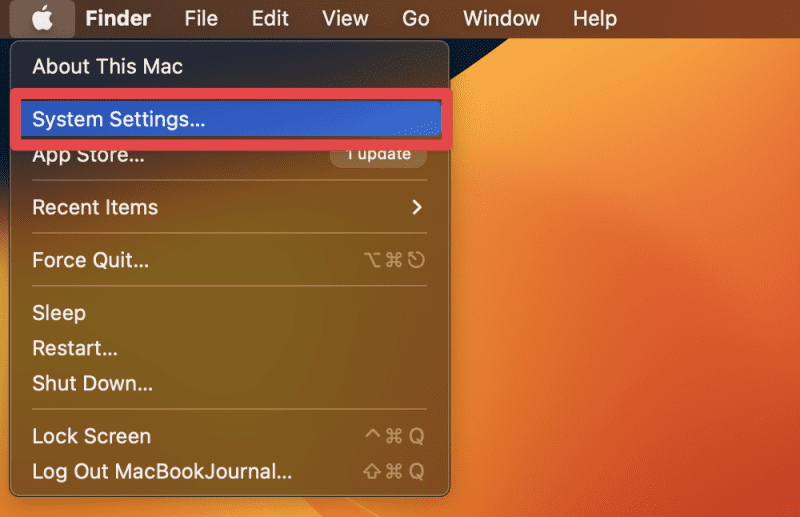
- macOS: For Mac users, here’s how to set up automatic updates:
- Open System Preferences from the Apple menu.
- Click on Software Update.
- Select the checkbox for Automatically keep my Mac up to date.
By properly configuring your settings, you not only shield your device from cybersecurity threats but also enhance efficiency by ensuring that you always have the latest features at your disposal.
Now that you understand the importance of activating automatic updates on various devices, you can take the necessary steps to safeguard your apps and enjoy a seamless user experience. Whether you use mobile devices or desktops, the settings are user-friendly and designed to keep you up to date effortlessly.
| Category | Details |
|---|---|
| User Convenience | Automatic updates save users the hassle of manually updating apps, ensuring they always have the latest features. |
| Security Enhancements | By keeping your apps up to date with the latest security patches, your devices are less vulnerable to attacks and breaches. |
| Time Efficiency | Automatic updates allow users to save time, focusing on tasks rather than worrying about app functionality and patching. |
| Performance Improvements | Regular updates often come with performance enhancements that improve the user experience. |
Integrating these automatic updates into your workflow ensures that all applications are running optimally and securely, without the burden of constant monitoring. Various platforms, whether iOS, Android, or desktop environments, each have straightforward settings that allow for these automatic updates. By following manufacturer guidelines and best practices, users can seamlessly enhance their app experiences. This not only fosters a more secure and efficient workflow but also enriches the overall digital experience significantly. To dig deeper, find out the steps to activate these settings in your respective applications today; your apps deserve the best!
DIVE DEEPER: Click here to explore the benefits of software updates
Exploring Automatic Update Features
Enabling automatic updates for your apps not only keeps them secure but also enhances functionality with the latest features and improvements. However, beyond the basic settings, many platforms offer advanced features that can help tailor your update experience to fit your unique needs. Delving deeper into these advanced options can give you greater control over how and when your applications update, offering an even smoother experience.
Managing Automatic Updates in App Settings
Many applications have their own internal settings that allow users to manage updates independently of system-wide settings. From popular software like Microsoft Office to creative tools like Adobe Creative Cloud, understanding how to navigate these preferences can provide additional customization.
- Microsoft Office: To set automatic updates for Office applications:
- Open any Office app (like Word or Excel).
- Click on File and then select Account.
- Under Product Information, choose Update Options.
- Click Enable Updates if it’s not already on.
- Adobe Creative Cloud: For Adobe users, the process is slightly different:
- Open the Creative Cloud desktop app.
- Click on the Apps tab.
- Under the Installed apps section, you’ll find Updates. Make sure the Auto-update toggle is turned on for each app.
Being able to manage updates on a per-app basis means that you can prioritize critical applications while limiting updates for others that may not be as essential. This flexibility ensures that you won’t encounter unexpected changes in Software that you rely on regularly, which could potentially disrupt your workflow.
Scheduled Updates for Maximum Convenience
Another noteworthy feature is the ability to schedule updates to occur during off-hours. This functionality can be particularly beneficial in environments where high-performance operations are necessary, such as for businesses or during specific work hours. Allowing updates to roll out at optimized times can mitigate disruptions and enhance overall efficiency.
- Windows 10 and 11: Setting active hours lets you specify when updates can occur:
- Navigate to Settings > Update & Security > Windows Update.
- Select Change active hours to set your preferred times.
- macOS: Similarly, Mac users can leverage scheduling options:
- Return to System Preferences > Software Update.
- Click on Advanced and select options that allow updates at times that suit you best.
By scheduling updates, you can keep your devices running optimally while maintaining full productivity in your professional or personal life. It’s beneficial for larger organizations where downtime must be minimized or avoided altogether.
Understanding and utilizing the features offered by various platforms and applications when it comes to automatic updates enables you to create a tailored experience that meets your unique needs. The more informed you are about these settings, the better you can strike a balance between security, functionality, and user control.
DISCOVER MORE: Click here to learn about data analysis in enhancing user experiences
Conclusion: Elevate Your App Experience with Automatic Updates
In today’s fast-paced digital landscape, setting up automatic updates in your apps is not just convenient; it’s essential for maintaining security and optimizing performance. As we’ve explored, enabling these updates ensures that you’re always equipped with the latest features and critical security patches, which protects your devices from vulnerabilities that can compromise your data.
Moreover, diving deeper into app-specific settings allows you to customize your update preferences based on your unique needs. Whether you’re using Microsoft Office or Adobe Creative Cloud, you can effectively manage when and how updates occur, offering a more tailored experience. Additionally, the ability to schedule updates during off-peak hours further enhances productivity, especially in business environments where uptime is paramount.
As we have discussed, being proactive in managing automatic updates enables you to strike a balanced approach. This not only keeps your applications secure and functional but also minimizes disruptions in your daily workflow. By taking the time to understand the various settings available across platforms like Windows and macOS, you empower yourself to transform how your applications operate.
Ultimately, staying informed and engaged with your applications can lead to a seamless user experience. So, take a moment to explore your settings today – your future self will thank you. After all, in the world of technology, a little foresight goes a long way.
Related posts:
How to Configure Automatic Updates to Ensure Your Device's Security and Performance
Demystifying the Update Process: What Really Happens Behind the Scenes
The Importance of Software Updates for Device Security
The Role of Software Updates in Maintaining Compatibility with New Technologies
Future Trends in Software Updates: What to Expect in 2024
How to Manage Software Updates on Multiple Devices

Beatriz Johnson is a seasoned tech writer and digital tools expert with a passion for simplifying the complexities of technology and mobile applications. With over a decade of experience in the tech industry, she specializes in topics like productivity apps, software reviews, and emerging digital trends. Through her work, Beatriz empowers readers to make informed technology choices and stay ahead in the ever-changing world of apps and innovation.